
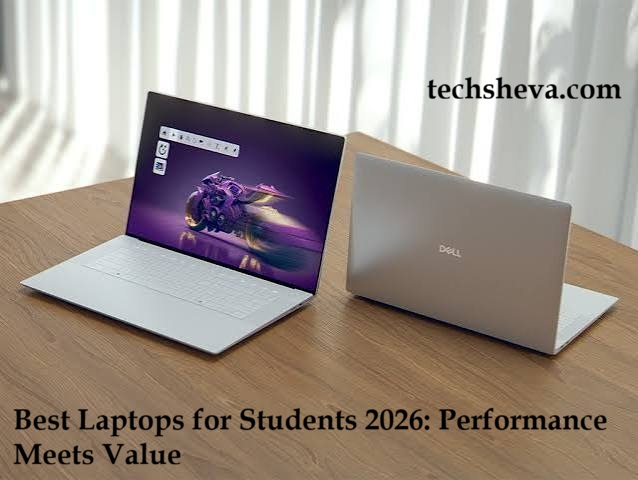
Best laptops for students are trickier to shop for in 2026 than in past years. A global memory-chip shortage has pushed RAM and SSD prices up sharply this year, and manufacturers including Lenovo, Dell, HP, and Asus have all warned that laptop prices are rising because of it. That means the “just get whatever’s cheapest” approach is riskier than usual — underspeccing a machine now is harder to fix later, because a RAM or storage upgrade that used to cost $40 might cost several times that by the time you need it.
None of that changes what students actually need. It just makes it more important to buy the right specification the first time, rather than the most impressive one. This guide walks through what actually matters for coursework, which 2026 laptops deliver it, and where you can safely spend less without hurting your experience.
The short answer
If you only read one section, read this one.
- Best overall for most students: ASUS Zenbook 14 OLED (Windows, Intel Core Ultra) — the strongest all-around balance of display quality, performance, portability, and price.
- Best if you want a MacBook: Apple MacBook Air 13″ (M5) — long battery life, excellent build quality, and now starts with 512GB of storage.
- Best budget pick: Acer Aspire 5 (Ryzen 5, 16GB RAM) — genuinely usable performance for papers, browsers, and video calls without the premium price.
- Best Chromebook: ASUS Chromebook Plus CX34 — fast enough for coursework, simple to maintain, and less exposed to this year’s component price hikes.
- Best for engineering, CS, and data-heavy majors: Lenovo ThinkPad X1 Carbon or a 32GB Windows configuration — enough memory headroom for IDEs, VMs, and CAD-adjacent work.
- Best 2-in-1: HP OmniBook X Flip 14 or Acer Chromebook Plus Spin 714 — touch and pen input for note-taking, without a huge premium.
- Best for students who also game: ASUS ROG Zephyrus G14 — but this is overkill and overpriced for most coursework; only worth it if gaming is a real priority alongside school.
The rest of this guide explains why, and helps you figure out which of these actually fits your major, budget, and habits.
Why 2026 is a strange year to buy a laptop
Before getting into recommendations, it’s worth understanding the market you’re buying into. Through 2026, memory (RAM) and storage (SSD/NAND) prices have risen dramatically — driven largely by AI data centers consuming the same manufacturing capacity that used to go toward consumer laptops and phones. DRAM contract prices rose by roughly 90% or more in a single quarter earlier this year, and major PC brands have publicly said this is pushing retail prices up by somewhere around 15–30% compared to what you’d have paid in 2025.
What this means practically for a student shopper:
- Entry-level configurations with only 8GB of RAM are becoming more common again, even on laptops that would have shipped with 16GB a year ago. Read the spec sheet carefully rather than assuming “new laptop” means “well-specced laptop.”
- RAM and storage upgrades are more expensive than they used to be, and in many laptops (including most MacBooks and a growing number of thin Windows ultrabooks) RAM is soldered and can’t be upgraded after purchase at all. Buying enough memory up front matters more this year than in a normal year.
- Prices may keep drifting upward through the rest of 2026, so waiting indefinitely for a big price drop is not a reliable strategy this year the way it sometimes has been in the past. If a configuration meets your needs at a fair price, it’s reasonable to buy rather than wait.
- Chromebooks and lower-RAM machines are relatively less affected, since they’re built around smaller memory footprints to begin with — one reason a Chromebook or a well-chosen budget Windows laptop is a stronger value proposition in 2026 than in a typical year.
Keep this context in mind as you read the specification advice below — it’s part of why we’re pushing you toward “enough RAM, bought once” rather than “save now, upgrade later.”
Read More: I’ve tested dozens of Bluetooth trackers for Android
What students actually need (and what you can skip)
A lot of student-laptop content just lists specs without explaining which ones matter for actual coursework. Here’s the honest version.
CPU: Most coursework — writing, browser research, spreadsheets, video calls, lecture capture, light photo editing — barely taxes a modern processor. A current-generation Intel Core Ultra 5/7, AMD Ryzen 5/7, or Apple M-series chip is more than enough. You do not need the fastest chip on the market unless you’re doing video editing, 3D rendering, machine learning work, or CAD.
RAM: This is the single most important spec to get right in 2026, both because of performance and because upgrades are pricier or impossible after purchase.
- 8GB is the bare minimum and will feel tight within a year or two, especially with dozens of browser tabs open alongside Zoom, Word, and Spotify.
- 16GB is the realistic sweet spot for the vast majority of students in any major.
- 32GB is worth paying for if you’re running virtual machines, IDEs with heavy indexing, CAD/simulation software, or doing serious video/photo editing.
Storage: 512GB SSD is comfortable for most students; 256GB is workable if you rely on cloud storage and don’t keep large local media or datasets. Avoid eMMC storage (common on the cheapest laptops) — it’s noticeably slower than a real SSD.
Graphics: Integrated graphics (Intel Arc, AMD Radeon, Apple’s GPU cores) are sufficient for essentially all coursework, including most CAD and design software. A dedicated GPU only matters if you’re doing serious 3D rendering, machine learning training, or gaming — and it adds meaningful cost, weight, and battery drain.
Battery life: Manufacturer battery claims (often 15–18+ hours) are measured under best-case, low-brightness, minimal-multitasking conditions. Realistic full-day use with browser tabs, video calls, and higher brightness typically runs 30–50% shorter than the marketing number. Aim for a laptop rated at 14+ hours on paper if you want it to comfortably survive a full day of back-to-back classes without a charger.
Screen: 13–15 inches is the practical range for a laptop you’re carrying daily. 1080p or higher resolution is fine for most work; OLED panels look noticeably better and are increasingly common even at mid-range prices, but they’re not essential. High refresh rates (120Hz+) look nice but add little value for document work or web browsing — don’t pay a premium for this unless you’re also gaming.
Weight and portability: Under 3.5 lbs (1.6 kg) is comfortable for daily carrying between classes. Heavier “desktop replacement” laptops (4.5 lbs+) are fine if the laptop mostly lives on a desk, but painful if you’re walking across campus with it daily.
Operating system: Covered in more detail below, but the short version: Windows has the widest compatibility with specialized academic and engineering software; macOS is excellent for general coursework and especially strong for creative and CS-adjacent work but can be a dealbreaker for Windows-only lab software; ChromeOS is a legitimate option for students whose work is mostly browser-based, but it’s a poor fit for anyone needing desktop engineering, CAD, or specialized Windows-only applications.
Best laptops for students in 2026, by category
Best overall: ASUS Zenbook 14 OLED
Best for: Most students in most majors who want one laptop that does everything well.
The Zenbook 14 OLED pairs a 14-inch 2.8K–3K OLED display with an Intel Core Ultra processor, and configurations commonly land around 16–32GB of RAM with a 512GB–1TB SSD, all in a chassis under 1.4 kg. Real-world testing has generally put battery life in the 12–15 hour range for typical use, and the OLED panel is genuinely one of the better screens available at this price tier — useful for reading dense PDFs and long study sessions.
Strongest advantage: Display quality and everyday performance for the price, in a genuinely portable body.
Biggest limitation: Fan noise can get noticeable under sustained load, and depending on configuration, RAM may be soldered rather than upgradeable — so choose your RAM tier carefully at checkout given this year’s pricing climate.
Good value? Yes — this is the clearest “performance meets value” pick in the current Windows lineup for general coursework.
Best if you want a MacBook: Apple MacBook Air 13″ (M5)
Best for: Students who want long battery life, a lightweight build, and don’t need a Windows-only application.
Released in March 2026, the M5 MacBook Air starts at $1,099 (with education pricing typically around $999) and now ships with 512GB of storage standard, up from 256GB on the previous generation — a meaningful improvement given how expensive storage has become industry-wide this year. It’s fanless, weighs about 2.7 lbs, and Apple claims up to 18 hours of battery life (expect meaningfully less under real classroom use, but it’s still among the longest-lasting laptops you can buy).
Strongest advantage: Battery life, build quality, and a smooth, reliable software experience with minimal maintenance overhead.
Biggest limitation: No dedicated GPU, and RAM/storage cannot be upgraded after purchase — you’re locked into whatever configuration you buy, so don’t undersize it. Also a dealbreaker for majors that require specific Windows-only lab or engineering software; check your program’s requirements before buying.
Good value? Yes for most non-technical majors, and increasingly for CS students too, since it handles most coding, especially web and general-purpose programming, comfortably. Less good value if your coursework specifically requires Windows applications.
Best for engineering, CS, and data-heavy majors: Lenovo ThinkPad or a 32GB Windows ultrabook
Best for: Students running IDEs, virtual machines, MATLAB, CAD-adjacent tools, or multiple resource-heavy applications at once.
ThinkPads remain a strong recommendation here for their keyboard quality (a real factor if you’re coding or writing for hours daily), MIL-SPEC-tested durability, and configurations that go up to 32GB or more of RAM. If ThinkPad pricing is out of reach, look for any well-reviewed Windows ultrabook (Zenbook, Yoga, OmniBook) configured with 32GB RAM and a Core Ultra 7 or Ryzen AI 9 processor — the RAM headroom matters more here than brand.
Strongest advantage: Reliability, keyboard comfort for long sessions, and enough memory to comfortably run development environments without slowdown.
Biggest limitation: Premium ThinkPad configurations (like the newer X9 15p, which starts around $1,999–2,000) are expensive relative to what most students strictly need — you’re often paying for build quality and display more than raw capability most coursework requires.
Good value? Yes at the 32GB/Core Ultra 7 tier if your coursework genuinely needs the memory headroom; the ultra-premium ThinkPad models are a stretch purchase rather than a value pick.
Best budget pick: Acer Aspire 5 (or equivalent budget Windows laptop)
Best for: Students on a tight budget who mainly need a reliable machine for writing, research, and browser-based coursework.
A well-configured budget laptop in the $500–650 range with an AMD Ryzen 5 or Intel Core i5/Core 5 processor, 16GB of RAM, and a 512GB SSD is genuinely usable for the vast majority of coursework — it just won’t have the display quality, build materials, or long-term polish of a $1,000+ machine.
Strongest advantage: Real, honest performance for the price — this tier has improved a lot in the last few years.
Biggest limitation: Watch the RAM configuration closely. Many budget listings in 2026 still ship with only 8GB to hit a lower price point given rising component costs — that’s the one spec worth stretching your budget for if a cheaper listing offers less.
Good value? Yes, provided you specifically confirm 16GB RAM and SSD (not eMMC) storage before buying — don’t assume a “budget” laptop automatically has weak specs, and don’t assume a mid-priced one automatically has good ones.
Best Chromebook: ASUS Chromebook Plus CX34
Best for: Students whose coursework is mostly browser-based — research, Google Workspace/Microsoft 365 web apps, video lectures, and note-taking — and who want a simple, low-maintenance machine.
The “Chromebook Plus” certification tier (also represented by the Lenovo Chromebook Plus 14 and Acer Chromebook Plus Spin 714) guarantees a baseline of at least 8GB RAM, a real IPS or OLED display, and reasonably capable hardware — a big step up from the 4GB, low-resolution Chromebooks that gave the category a bad reputation. ChromeOS updates automatically, starts in seconds, and is largely immune to the malware issues that affect Windows.
Strongest advantage: Simplicity, fast boot times, automatic updates, and a price that’s held up relatively well against this year’s component cost increases.
Biggest limitation: No support for desktop engineering software, CAD, or many specialized academic applications — you’re dependent on web apps and Android/Linux app compatibility, which varies by program.
Good value? Yes, but only for students who’ve confirmed their coursework doesn’t require desktop-only software. Don’t buy a Chromebook and hope your engineering software runs in a browser — check first.
Best 2-in-1: HP OmniBook X Flip 14 or Acer Chromebook Plus Spin 714
Best for: Students who take handwritten or annotated notes, sketch diagrams, or want tablet mode for reading PDFs and textbooks.
On the Windows side, the HP OmniBook X Flip pairs a sharp OLED touchscreen with genuine 2-in-1 flexibility and pen support in a light, well-built chassis. On the Chromebook side, the Acer Chromebook Plus Spin 714 offers similar convertible flexibility with a simpler, lower-maintenance OS underneath.
Strongest advantage: Genuine usefulness for note-taking and reading, not just a gimmick — if you actually use handwritten notes or PDF annotation, this format earns its premium.
Biggest limitation: The HP model skips an HDMI port and has a keyboard with somewhat low travel; convertibles in general also tend to have shorter battery life than an equivalent clamshell laptop.
Good value? Only if you’ll actually use the touch/pen functionality regularly. If you’d never take handwritten notes, a standard clamshell in the same price range will usually get you a better display or battery life for the money.
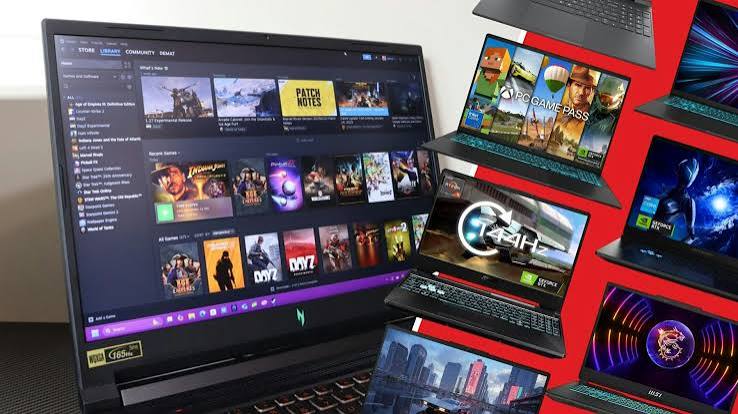
Best for students who also want to game: ASUS ROG Zephyrus G14
Best for: Engineering, CS, or creative students who also want serious gaming performance from the same machine, and don’t mind paying for it.
The Zephyrus G14 pairs a powerful processor with genuine Nvidia GPU performance (RTX 5070 Ti-class configurations handle modern AAA games and local AI/ML workloads) in a relatively compact 14-inch chassis.
Strongest advantage: It’s one of very few laptops that’s both genuinely portable and genuinely capable of high-end gaming and GPU-accelerated coursework.
Biggest limitation: It is expensive and offers far more performance than the overwhelming majority of students need for schoolwork alone. Buying it purely “for classes” is a mistake — this is a gaming laptop that also does homework, not the other way around.
Good value? Only if gaming or GPU-heavy coursework (ML, 3D rendering, video work) is a real, standing priority. If you’d mainly game occasionally, a MacBook Air, ThinkPad, Yoga, or OmniBook plus a cheap cloud-gaming subscription is a far better use of money.
Comparison table
| Laptop | Best for | Processor | RAM | Storage | Battery (real-world) | Weight | OS | Key strength | Main drawback | Price range |
|---|---|---|---|---|---|---|---|---|---|---|
| ASUS Zenbook 14 OLED | Most students | Intel Core Ultra 7 | 16–32GB | 512GB–1TB | ~12–15 hrs | ~1.3 kg | Windows 11 | Display + value balance | Fan noise under load | ~$1,000–1,400 |
| MacBook Air 13″ (M5) | MacBook fans, general majors | Apple M5 | 16–32GB | 512GB+ | ~12–14 hrs | 2.7 lbs | macOS | Battery life, build quality | No Windows-only software | $1,099+ ($999 edu) |
| ThinkPad (32GB config) | Engineering, CS | Core Ultra 7 / Ryzen AI 9 | 32GB | 512GB–1TB | ~10–13 hrs | 1.2–1.5 kg | Windows 11 | Keyboard, durability, memory headroom | Premium models are pricey | $1,300–2,000+ |
| Acer Aspire 5 (16GB config) | Tight budgets | Ryzen 5 / Core i5 | 16GB | 512GB SSD | ~9–11 hrs | ~1.7 kg | Windows 11 | Price-to-performance | Build materials, display quality | ~$500–650 |
| ASUS Chromebook Plus CX34 | Browser-based coursework | MediaTek / Intel Core i3 | 8GB | 128–256GB | ~10–12 hrs | ~1.4 kg | ChromeOS | Simplicity, low maintenance | No desktop-only software | ~$400–500 |
| HP OmniBook X Flip 14 | Note-takers | Core Ultra 7 | 16GB | 512GB | ~9–11 hrs | ~1.4 kg | Windows 11 | Touch + pen flexibility | No HDMI, shorter battery | ~$900–1,200 |
| ASUS ROG Zephyrus G14 | Gaming + heavy GPU work | Core Ultra 9 + RTX 5070 Ti | 32GB | 1TB | ~7–9 hrs | ~1.7 kg | Windows 11 | Genuine gaming + GPU compute | Expensive, overkill for coursework | $2,000+ |
Prices vary by region, configuration, retailer promotions, and — this year especially — by how memory and storage costs move over the coming months, so treat these as approximate ranges rather than fixed figures.
Budget breakdown: what to expect at each price level
Under $500 (entry-level): Realistically, this tier gets you a Chromebook or a very basic Windows laptop, often with 8GB RAM and either eMMC or a small SSD. Fine for a secondary device or genuinely light browser-based work; not ideal as a primary laptop for four years of coursework, especially with component prices climbing.
$500–900 (affordable to mid-range): The strongest value zone for 2026. This is where you’ll find well-configured budget Windows laptops (Acer Aspire 5, similar Lenovo IdeaPad and HP models) with a current-generation processor, 16GB RAM, and a real SSD — genuinely capable of handling any non-technical major comfortably, and most technical majors adequately.
$900–1,400 (premium mainstream): MacBook Air, Zenbook 14 OLED, mid-tier ThinkPads, and Chromebook Plus flagships live here. You’re paying for build quality, display quality, and battery life more than raw capability — worth it if you’ll use the laptop daily for years and value the experience, less essential if you just need something that works.
$1,400+ (premium/specialist): MacBook Pro, high-end ThinkPads, and gaming laptops like the Zephyrus G14. Only justified if you have a specific, real need — video editing, 3D/CAD work, machine learning, or serious gaming — rather than general coursework. Spending more here does not meaningfully improve the experience of writing papers or browsing research databases.
Where spending more helps, and where it doesn’t: Extra money is well spent on more RAM (given 2026 pricing and soldered-memory trends), a better display if you’ll stare at it for years, and better battery life if you’re on campus all day. Extra money is poorly spent on a faster CPU than you’ll ever use, a dedicated GPU you won’t game or render with, or a higher refresh-rate screen for document work.
Windows vs. macOS vs. ChromeOS for students
Windows has the broadest compatibility with specialized software — engineering tools, CAD, certain lab and statistics packages, and anything your specific program mandates. If in doubt, check your department’s official software requirements before ruling Windows out; it’s the safest default for STEM and business programs with mandatory Windows-only applications.
macOS handles general coursework, writing, research, and most programming (especially web development, Python, and general CS coursework) very well, with strong build quality and battery life. It’s a poor fit only when a specific required application is Windows-only — verify this with your program before committing, since it’s not something you can easily work around later.
ChromeOS is genuinely sufficient for students whose work is mostly browser- and cloud-based: research, writing in Google Docs or Word Online, watching lectures, and video calls. It falls short fast for anyone needing desktop-installed software, offline specialized tools, or engineering/CAD applications.
Common mistakes students make when buying a laptop
- Buying more CPU/GPU than you need. Most students never touch the performance ceiling of a modern mid-range processor; a gaming-grade machine bought “just in case” is usually wasted money.
- Choosing 8GB RAM to save money. Given this year’s memory pricing and the number of laptops with non-upgradeable RAM, this is the single costliest place to under-spec in 2026.
- Ignoring battery life in favor of specs. A powerful laptop that dies by 1pm is a worse daily-use laptop than a modest one that lasts through evening classes.
- Ignoring weight. A laptop that’s uncomfortable to carry daily tends to get left in the dorm — which defeats the purpose of buying a portable machine at all.
- Assuming a dedicated GPU is required for coursework. It almost never is, outside specific majors (engineering simulation, film/video, ML, competitive gaming).
- Focusing only on the processor name. “Core Ultra 7” or “Ryzen 9” sounds impressive, but RAM, storage type, display quality, and battery life affect daily experience more for typical student use.
- Not checking academic software compatibility before buying. This is the single most avoidable mistake — confirm required software (CAD, statistics packages, engineering tools) runs on your intended OS before you buy, not after.
- Buying based only on a discount. A steep sale price on a poorly specced configuration (8GB RAM, eMMC storage) is still a poor purchase, discount or not.
- Ignoring warranty and support. A laptop that needs to survive 3–4 years of daily campus use benefits from at least standard manufacturer warranty coverage; check what’s included before assuming next-day repair service.
FAQ
What is the best laptop for students in 2026? There’s no single best laptop for every student — it depends on your major and budget. For most students, the ASUS Zenbook 14 OLED offers the strongest overall balance of price, performance, display quality, and portability. Students who prefer macOS should look at the MacBook Air 13″ (M5).
How much RAM does a student laptop need? 16GB is the realistic sweet spot for the large majority of students in 2026. 8GB is workable for very light, browser-only use but will feel constrained within a year or two. 32GB is worth it only for engineering, coding-heavy, or creative majors running demanding applications.
Is 8GB RAM enough for college? It can handle light workloads (browsing, documents, video calls) but will struggle with heavy multitasking, and — because RAM is soldered on many current laptops — you often can’t upgrade it later. Given 2026’s higher memory prices, it’s worth stretching your initial budget to 16GB if at all possible.
Is 16GB RAM worth it for students? Yes, for nearly everyone. It comfortably handles multitasking across browser tabs, office software, and video calls without slowdown, and gives you meaningful headroom over the life of the laptop.
How much storage should a student laptop have? 512GB is comfortable for most students. 256GB is workable if you lean heavily on cloud storage and don’t keep large local files. Avoid laptops using eMMC storage instead of a real SSD — it’s noticeably slower.
Is a MacBook good for college students? Yes, for most majors — particularly writing-heavy, business, and general CS coursework — thanks to strong battery life and build quality. It’s a weaker fit only if your program specifically requires Windows-only software; check this before buying.
Is Windows better than Mac for students? Neither is universally better — it depends on required software. Windows has broader compatibility with specialized academic, engineering, and lab applications; macOS offers a smoother day-to-day experience and excellent battery life for general coursework. Check your program’s software requirements first.
Are gaming laptops good for college? They’re capable but usually a poor value choice for coursework alone — you’re paying for GPU power most students won’t use academically, plus extra weight and shorter battery life. They make sense only if gaming or GPU-heavy work (rendering, ML) is a genuine standing priority alongside school.
What is the best budget laptop for students? A well-configured laptop like the Acer Aspire 5 with 16GB of RAM and an SSD, typically in the $500–650 range, delivers real day-to-day performance for most coursework. Always confirm the RAM and storage type before buying — “budget” doesn’t always mean underpowered, but it sometimes does.
How long should a student laptop last? A well-specced laptop (16GB RAM, SSD storage, current-generation processor) should comfortably last 4+ years of typical coursework use. Underspeccing RAM or storage is the most common reason a laptop feels obsolete well before then.
Do students need a dedicated graphics card? No, not for the vast majority of coursework — integrated graphics on modern chips handle everyday work, web browsing, video, and even most CAD software fine. A dedicated GPU only matters for gaming, 3D rendering, video editing, or machine learning work.
Conclusion
The laptop that gives you the best “performance meets value” in 2026 isn’t the one with the flashiest specs — it’s the one that matches your actual major, budget, and daily habits, with enough RAM to stay comfortable for years given how expensive upgrades have become this year. For most students, that means a well-configured Windows ultrabook like the Zenbook 14 OLED or a MacBook Air, with 16GB of RAM as the non-negotiable baseline. Spend extra where it actually improves your daily experience — display, battery, and memory — and save where it won’t: processor headroom and graphics power you’ll likely never use.

4 Comments
Pingback: Best Smartwatches 2026: Features, Battery and Value Compared
Pingback: Latest Technology News 2026: Biggest Tech Updates
Pingback: Biggest Cybersecurity Threats in 2026 You Should Know About
Pingback: Best Portable Monitors 2026: Top Picks for Work & Travel