
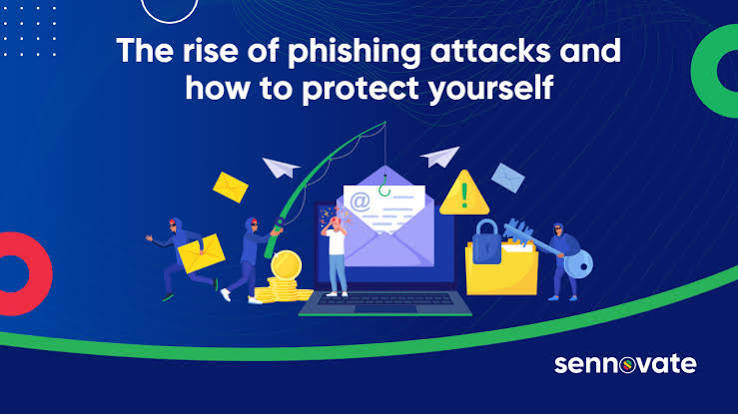
Phishing is not a new threat, but it hasn’t gotten any easier to spot. In 2026, the messages that try to steal your passwords, your money, or your identity are more convincing than ever — cloned company branding, realistic sender names, personalized details pulled from social media, and even AI-generated writing that reads exactly like the real thing. At the same time, attackers have expanded far beyond email: text messages, QR codes, fake CAPTCHA prompts, collaboration-tool invites, and phone calls are all now common phishing channels.
The good news is that protecting yourself doesn’t require becoming a security expert. It requires a shift in habit: relying less on “does this look legitimate” and more on “can I verify this independently.” This guide walks through how phishing works, how to recognize it, how to lock down your accounts so a single mistake doesn’t turn into a disaster, and exactly what to do if you’ve already clicked, entered a password, or handed over an MFA code.
By the end, you’ll know how to protect yourself from phishing attacks at every stage — before a message arrives, in the moment you’re deciding whether to trust it, and after something goes wrong.
What Is a Phishing Attack?
Phishing is a social engineering attack in which someone impersonates a trusted person, brand, or organization to trick you into handing over sensitive information, clicking a malicious link, or taking an action that benefits the attacker — such as sending money or installing malware.
Attackers are usually after one or more of the following:
- Login credentials (email, banking, work accounts, cloud storage)
- One-time codes or MFA approvals
- Payment or financial account details
- Personal information that can be used for identity theft
- A foothold on your device, often through malware
A simple example: You get a text saying a package couldn’t be delivered and asking you to “update your delivery preferences” through a link. The link leads to a page that looks like a real shipping carrier’s site and asks for your name, address, and a small “redelivery fee” — which means entering your card number. There was never a package. The goal was your card details.
Stolen credentials rarely stay contained to one account. Because people reuse passwords and because email is often the recovery method for other accounts, a single successful phishing attempt can cascade into account takeover, direct financial loss, or long-term identity theft.
Read More: Latest Technology News 2026: Biggest Tech Updates This Month
How Phishing Attacks Work
Most phishing attacks follow a similar chain, even though the channel and disguise vary:
Message → Social engineering hook → Click or interaction → Fake page, file, or request → Credential or information theft → Account compromise or fraud
A few important nuances:
- Not every phishing attack requires you to type a password. Some only need you to open an attachment (which installs malware), approve a push notification, scan a QR code, or simply reply with information.
- Some attacks steal your session instead of your password. In an “adversary-in-the-middle” (AiTM) attack, a fake login page sits between you and the real website in real time. You enter your real password and complete MFA normally — but the attacker’s page captures the session token issued after you log in, and that token lets them access your account without ever needing your password again. This is why security researchers now stress that completing MFA successfully does not, by itself, prove you were logging into the real site.
- Business email compromise (BEC) doesn’t always involve a fake link at all — it may be a convincingly written email from a “vendor” or “executive” asking for a wire transfer or a change to payment details.
Understanding this chain matters because it shows why protection has to happen at multiple points — not just “spotting” the message, but also limiting what a stolen password or session can do.
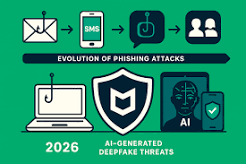
Common Types of Phishing Attacks in 2026
| Type | How It Works | Warning Signs | Best Defense |
|---|---|---|---|
| Email phishing | Fake or spoofed sender impersonates a company, coworker, or service | Urgent tone, unexpected request, mismatched sender domain | Verify independently; enable email filtering |
| Smishing (SMS phishing) | Fake texts about deliveries, banking alerts, or rewards points | Shortened links, unknown numbers, urgency | Don’t tap links in unexpected texts; contact the company directly |
| Quishing (QR code phishing) | Malicious QR codes on packages, posters, parking meters, or in emails/PDFs | Unsolicited codes, codes over other codes (stickers), codes requiring login | Preview the URL before opening; avoid scanning unsolicited codes |
| Spear phishing | Highly targeted message using research about you or your role | Message references real details but requests something unusual | Verify unusual requests through a second channel |
| Business email compromise (BEC) | Impersonation of an executive, vendor, or partner to redirect payments | Sudden change in payment instructions, urgency, pressure to bypass process | Require separate approval for payment changes; verify by phone |
| Fake login pages / credential harvesting | Convincing clone of a real sign-in page | URL doesn’t match the real domain; unexpected login prompt | Check the address bar; use a password manager (it won’t autofill on a fake domain) |
| MFA phishing / AiTM | Real-time proxy captures both password and session token after MFA | You approved MFA but something afterward seems off (new device alert, unexpected activity) | Use phishing-resistant MFA (passkeys/security keys) |
| Fake CAPTCHA scams | A fake “verify you’re human” prompt tricks users into running commands or installing software | Instructions to copy/paste code or press unusual key combinations | Never follow instructions from a CAPTCHA-style prompt; close the page |
Not every phishing attempt fits neatly into one category — many combine several techniques (for example, a QR code inside a spoofed email that leads to a fake CAPTCHA page).
How to Recognize a Phishing Attack
No single red flag proves a message is phishing, and no single “clean” signal proves it’s safe. A well-crafted phishing message can be free of typos, use correct logos, and reference real details about you. Instead of scanning for sloppiness, look at the pattern of the request:
- An unexpected message, even if it looks like it’s from someone you know
- Urgency or pressure — “act now,” “your account will be locked,” “final notice”
- A request for a password, MFA code, or one-time code
- A request for payment or a change to payment/banking details
- A link you weren’t expecting to receive
- An attachment you weren’t expecting to receive
- A sender address or domain that doesn’t quite match the organization
- A request to bypass normal procedures (skip approval, use a personal channel, keep it confidential)
- Unusual payment instructions (gift cards, cryptocurrency, wire transfers to a “new” account)
- A QR code from an unfamiliar or unsolicited source
- An unexpected password-reset email you didn’t request
- A request to install software or run a command
- Being asked to enter information into a page that doesn’t feel like the real site
- Context that simply doesn’t match your normal activity — a bank you don’t use, a service you didn’t sign up for, a coworker asking for something out of character
If something feels off, the safest move is to stop interacting with the message and verify independently — not to hunt for more clues inside it.
How to Check a Link Before Clicking
- Hover before you click (on desktop) or press and hold (on mobile) to preview the actual destination URL — the visible text of a link can say anything regardless of where it actually leads.
- Read the domain carefully. Attackers use lookalike domains (extra letters, hyphens, swapped characters, or a different top-level domain) that resemble a real brand at a glance.
- HTTPS does not mean a site is legitimate. A padlock icon only means the connection is encrypted — phishing sites can and do use HTTPS. It says nothing about who controls the site.
- Be cautious with shortened links (bit.ly, tinyurl, etc.) since they hide the real destination until you click.
- When in doubt, don’t use the link at all. Instead, open a new browser tab and navigate directly to the organization’s known website, or use its official app.
- To verify a request, use a phone number or contact method you already know is real — never one supplied in the suspicious message itself.
Never click a suspicious link “just to see” what it does, even out of curiosity — some phishing pages fingerprint visitors or attempt to install malware simply by loading.
How to Protect Yourself From Phishing Attacks
This is the core of phishing protection: a set of habits and account settings that make you a harder target and limit the damage if one message slips through.
Step 1: Use Strong, Unique Passwords
Reusing a password across accounts means a single leaked password can be used to break into everything else you’ve used it for — a technique called credential stuffing. Use a long, unique password (or passphrase) for every important account, and let a password manager generate and store them so you don’t have to memorize dozens of strings. Forcing yourself to change passwords on an arbitrary schedule isn’t the same thing as good security — a strong, unique password you keep is better than a weak one you rotate constantly.
Step 2: Enable Multi-Factor Authentication (MFA)
MFA adds a second proof of identity beyond your password, so a stolen password alone usually isn’t enough to get in. But not all MFA methods offer equal protection:
- SMS codes — better than nothing, but vulnerable to SIM-swapping and can be phished through fake login pages
- Email codes — only as secure as your email account itself
- Authenticator app codes (TOTP) — stronger than SMS, but can still be captured by a real-time phishing proxy
- Push notifications with simple approve/deny — vulnerable to “MFA fatigue” attacks, where an attacker repeatedly triggers prompts hoping you’ll tap “approve” out of habit or annoyance
- Number matching — an improvement, since you must enter a number shown on the login screen into your app, but it can still be defeated by a well-timed, real-time phishing attempt
- Security keys and passkeys (FIDO2/WebAuthn) — the strongest category currently available (see Step 3)
Turn on MFA everywhere it’s offered, starting with email, banking, and your password manager — but understand that ordinary MFA reduces risk rather than eliminating it entirely.
Step 3: Prefer Passkeys or Phishing-Resistant MFA
Passkeys are a newer sign-in method built on the FIDO2/WebAuthn standard. Instead of a password, your device holds a private cryptographic key, and the website holds the matching public key. When you sign in, your device (unlocked with your fingerprint, face, or PIN) proves who you are without ever transmitting a shared secret that could be stolen or reused.
What makes passkeys and hardware security keys phishing-resistant — a term used specifically by agencies like CISA and standards bodies like NIST — is that the login process is cryptographically tied to the real website’s exact domain. If you land on a fake look-alike site, the passkey simply won’t work there, because the credential is bound to the legitimate domain and can’t be replayed against an impostor site. This is a meaningful step up from SMS codes, authenticator app codes, or approve/deny push prompts, all of which can potentially be captured or relayed by a sufficiently well-timed phishing attack.
Where a service offers passkeys or a hardware security key, that’s currently the strongest available option. Where it doesn’t, an authenticator app with number matching is a reasonable next-best choice over SMS.
Step 4: Keep Devices and Software Updated
Operating system, browser, and app updates frequently patch security flaws that phishing-delivered malware or malicious attachments try to exploit. Turn on automatic updates where possible so you’re not relying on remembering to do it manually.
Step 5: Use Spam and Phishing Filters
Email providers like Gmail and Outlook have spam and phishing filtering turned on by default, and browsers include built-in warnings for known malicious sites. These filters catch a large share of attempts automatically — but they are not perfect, and a message that reaches your inbox has already passed one layer of defense, not proof that it’s safe.
Step 6: Avoid Reusing Credentials
This deserves its own mention alongside Step 1: even a single reused password creates a domino effect. If one service you used is breached and that password leaks, attackers will automatically try it against your email, banking, and shopping accounts. A password manager makes uniqueness effortless.
Step 7: Verify Unexpected Requests — Independently
This is the single most reliable defense against modern phishing, because it doesn’t depend on spotting subtle red flags in a message that may be nearly perfect. Whenever you receive an unexpected request — for payment, a password reset, an account alert, a document to review, or an unusual ask from a coworker or boss — verify it through a channel you already trust: call a phone number you looked up yourself, log into the account directly through the official app or website, or ask the person in person or through a known separate channel.
Never use a phone number, link, or “support” contact provided inside the suspicious message itself — that’s the trap.
Step 8: Be Careful With Attachments
Unexpected Office documents, PDFs, ZIP files, executables, and script files can carry malware, particularly when they arrive with pressure to open them quickly. Not every attachment is dangerous — but an unexpected attachment from an unfamiliar sender, or an unusual attachment from a known contact, deserves the same “verify before opening” treatment as a suspicious link.
Step 9: Be Careful With QR Codes
QR codes have become a popular phishing tool precisely because people are used to scanning them without a second thought. Both the FBI and consumer protection agencies have documented QR-based phishing (“quishing”) delivered via unsolicited packages, stickers placed over legitimate codes on parking meters and posters, and QR codes embedded in phishing emails or PDFs. Before scanning:
- Avoid scanning QR codes from unsolicited packages, especially ones with no return address
- Look for signs of tampering, like a sticker placed over an original code
- Preview the destination URL before opening it (most phones let you long-press to preview)
- Never enter login credentials or payment information on a page you reached through a QR code you weren’t expecting
Step 10: Protect Your Most Important Accounts First
If you can only prioritize a few accounts, start here:
- Primary email — often the key to resetting every other account’s password
- Banking and financial accounts
- Password manager
- Cloud storage (Google Drive, iCloud, OneDrive)
- Social media
- Work accounts
- Shopping accounts with stored payment methods
Email deserves special attention: because it’s typically used to receive password-reset links, compromising your email account can be the single fastest route to compromising everything else.
How AI Is Changing Phishing in 2026
AI tools have made it easier for attackers to produce phishing messages with fluent, error-free writing, personalized details, and faster campaign creation — including messages tailored to a specific target’s role, company, or communication style. Security researchers have also documented a rise in convincing voice and video impersonation used to support social-engineering attempts, particularly in business email compromise-style scams.
It’s important not to overstate this: AI does not make phishing undetectable. What it does is remove one of the old reliable signals — bad grammar and awkward phrasing — as a useful indicator. That’s why the recognition advice in this guide focuses on the pattern of a request (urgency, unexpected asks, requests for credentials or payment) rather than surface-level polish. A well-written message is not automatically safe, and a request that doesn’t match your normal workflow deserves independent verification regardless of how professional it looks.
What to Do If You Clicked a Phishing Link
Acting quickly limits the damage. What you should do depends on what happened next.
If you clicked but didn’t enter anything: Close the page. Run a security scan on your device if you’re concerned it may have triggered a download. Keep an eye on the related account for unusual activity over the next few days.
If you entered your password:
- Change that password immediately, from a device you trust and by navigating to the site directly (not through the link you clicked)
- Change the same password anywhere else you reused it
- Review your account’s active sessions and connected devices, and sign out of anything unfamiliar
- Turn on (or upgrade to stronger) MFA
- Check that your recovery email and phone number haven’t been changed
If you entered financial information: Contact your bank or card issuer immediately through the phone number on the back of your card or their official website — not any number from the suspicious message. Ask about disputing charges and, if appropriate, freezing or replacing the card.
If you downloaded or installed something: Disconnect the device from the internet if you suspect malware, then run a full scan with your device’s security software. If you’re not confident doing this yourself, a device that may be compromised is worth having checked by a professional, especially if it’s used for banking or work.
If you entered an MFA code or approved a push notification: Treat this as urgent — it can mean an attacker completed a real-time login using your credentials. Change your password immediately and review account activity and connected sessions right away.
If you believe the account was taken over:
- Try to regain access through the provider’s official account-recovery process
- Change the password from a secure device
- Revoke all active sessions and connected apps
- Re-enable or strengthen MFA
- Check and correct recovery email/phone settings
- Review recent activity for anything you didn’t do
If Social Security, credit card, or bank account numbers were involved, U.S. residents can go to IdentityTheft.gov for a personalized recovery plan.
How to Check Whether Your Account Was Compromised
Most major services let you review account activity. Look for:
- Recent login activity from unfamiliar locations or devices
- Devices you don’t recognize listed as “signed in”
- New recovery email addresses or phone numbers you didn’t add
- Password changes you didn’t make
- Security alerts you don’t remember acting on
- New email forwarding or filtering rules you didn’t create (a common way attackers quietly monitor a compromised inbox)
- Sent messages you didn’t write
- Purchases you didn’t make
- Changed profile information
- New MFA methods or authenticator apps registered that aren’t yours
If you find any of these, change your password immediately, remove the unauthorized device/method/forwarding rule, and re-secure your recovery settings.
How to Report a Phishing Attack
Reporting helps providers block the attacker and can help law enforcement track broader campaigns. Where you report depends on the channel and your location.
General steps (most providers):
- Use the “Report phishing” option in your email client (available in Gmail, Outlook, and most major providers)
- Report suspicious text messages by forwarding them to 7726 (SPAM)
- Report to the impersonated company through its official fraud or abuse reporting channel
United States-specific resources:
- Federal Trade Commission (FTC): ReportFraud.ftc.gov
- FBI Internet Crime Complaint Center (IC3): IC3.gov — especially for financial loss or cryptocurrency scams
- Anti-Phishing Working Group: forward phishing emails to reportphishing@apwg.org
- IdentityTheft.gov for identity theft recovery steps
If money was sent, contact your bank or payment provider first, before filing any report — the window to potentially reverse a transaction is often measured in hours.
Outside the U.S., report to your country’s national cybercrime reporting center or consumer protection authority, and to your bank directly if money or financial details were involved.
Phishing Protection for Businesses and Employees
Organizations face phishing at a larger scale, often as the opening move in ransomware attacks or business email compromise. Effective defense combines technical controls with employee awareness:
- Security awareness training, refreshed regularly rather than as a one-time exercise
- Phishing simulations to build real-world recognition skills
- Phishing-resistant MFA (passkeys/security keys) deployed as the baseline for all users, not just high-risk roles
- Email security controls, including domain authentication (SPF, DKIM, DMARC set to reject) to block spoofed sender domains
- Least-privilege access, so a single compromised account has limited reach
- Separate approval steps for payment changes — a phone call to a known contact, not just an email reply, before changing where money goes
- Clear, blame-free incident reporting, so employees report suspicious messages or mistakes immediately rather than hiding them
- Account and session monitoring to catch unusual activity even after successful authentication
Technical controls and employee awareness work best together — no single layer catches everything on its own.
What Phishing Protection Tools Actually Do
It helps to understand the actual role and limits of common tools, since none of them is a complete solution on its own:
- Password managers generate and store unique passwords and typically won’t autofill credentials on a fake look-alike domain — but they don’t stop you from manually typing a password into a phishing page.
- MFA blocks many password-only attacks, but standard forms (SMS, push, authenticator codes) can be bypassed by real-time phishing proxies.
- Passkeys / security keys offer the strongest protection currently available by cryptographically binding authentication to the legitimate domain.
- Antivirus and endpoint security can catch known malware delivered through phishing attachments, but doesn’t stop credential-harvesting pages that don’t install anything.
- Email spam filters catch a large share of phishing before it reaches your inbox, but sophisticated or novel campaigns can slip through.
- Browser protections (like built-in warnings for known malicious sites) help, but rely on a site already being flagged — brand-new phishing domains may not be caught immediately.
- DNS/security filtering can block known-bad domains at the network level, useful for households and organizations alike.
No single layer is a complete defense — combining several is what actually reduces risk.
Common Mistakes That Leave People Vulnerable
- Reusing the same password across multiple accounts
- Trusting a message because it has the right logo or branding
- Assuming HTTPS or a padlock icon means a site is safe
- Clicking because a message “looks professional”
- Using a phone number or link supplied inside the suspicious message to “verify” it
- Sharing an MFA code with anyone, including someone claiming to be IT or support
- Approving a login prompt you didn’t initiate, just to make the notifications stop
- Ignoring security alerts from your accounts
- Sticking with SMS-based MFA when a stronger option (authenticator app, security key, or passkey) is available
- Waiting to act after realizing credentials may have been entered on a fake site
- Assuming antivirus software alone prevents phishing
Phishing Protection Checklist for 2026
Accounts
- Unique password for every important account
- Password manager in use
- MFA enabled on email, banking, and other key accounts
- Passkeys or phishing-resistant MFA enabled where available
- Recovery email/phone reviewed and up to date
Devices
- Operating system updated
- Browser updated
- Security/antivirus software enabled
Daily habits
- Verify unexpected requests independently before acting
- Check a link’s real destination before clicking
- Treat unsolicited QR codes with caution
- Never share MFA codes with anyone
- Avoid opening unexpected attachments
Incident response readiness
- Know where to report phishing (email provider, FTC, IC3, APWG)
- Know how to quickly change a compromised password
- Have your bank’s official contact number saved somewhere you’ll find it in an emergency
Frequently Asked Questions
What is the safest way to protect yourself from phishing? Combine independent verification of unexpected requests with strong account security — unique passwords, a password manager, and phishing-resistant MFA (passkeys or security keys) wherever it’s offered. No single habit or tool covers everything; the combination is what matters.
How can I tell if an email is phishing? Look at the request pattern rather than the writing quality: is it unexpected, urgent, asking for credentials or payment, or asking you to bypass a normal process? A well-written, professional-looking email can still be phishing.
Can phishing happen through text messages? Yes — this is called smishing. It commonly impersonates delivery services, banks, or rewards programs and relies on the same urgency and link-clicking pattern as email phishing.
Can a phishing attack happen through a QR code? Yes. QR code phishing (“quishing”) has been used in unsolicited mailed packages, stickers placed over legitimate codes in public places, and codes embedded in phishing emails or PDF attachments. Preview the destination before scanning, and be wary of unsolicited codes.
Can antivirus stop phishing? It can catch malware delivered through a phishing attachment, but it generally can’t stop you from voluntarily entering your password into a convincing fake login page, since no malicious file is involved in that scenario.
Does HTTPS protect me from phishing? No. HTTPS only means the connection is encrypted — it says nothing about whether the site itself is legitimate. Phishing sites frequently use HTTPS.
Can MFA stop phishing? It stops many password-only attacks, but standard MFA methods (SMS, authenticator codes, simple push approvals) can be bypassed by real-time “adversary-in-the-middle” phishing that captures the session after you complete authentication. Phishing-resistant methods like passkeys and security keys close this gap because they’re cryptographically tied to the legitimate site’s domain.
Are passkeys safer than passwords against phishing? Yes. Because a passkey is bound to the specific legitimate domain it was created for, it simply won’t function on a fake look-alike site — unlike a password, which can be typed into any page regardless of whether it’s real.
What should I do if I clicked a phishing link? It depends on what happened next: if you entered nothing, run a security scan and monitor the account. If you entered a password, change it immediately (and everywhere else you reused it) and review account sessions. If you entered financial details, contact your bank right away.
What should I do if I entered my password on a fake website? Change that password immediately from a trusted device, change it anywhere else you reused it, review your account’s active sessions and devices, and strengthen your MFA.
Can phishing steal an account without my password? Yes. Some attacks steal your active session token after you log in normally (adversary-in-the-middle phishing), while others trick you into approving a malicious app’s access without ever needing your password at all.
How do I report a phishing message? Use your email provider’s built-in “report phishing” option, forward suspicious texts to 7726, and — in the U.S. — report to ReportFraud.ftc.gov and, if money was lost, IC3.gov.
What are the most common phishing attacks in 2026? Email phishing, smishing, QR code phishing (quishing), spear phishing, business email compromise, fake login pages, and real-time “adversary-in-the-middle” attacks that bypass standard MFA by stealing session tokens.
Conclusion
Phishing in 2026 isn’t beaten by looking for typos — it’s beaten by habits that don’t depend on a message looking suspicious in the first place. Be skeptical of unexpected requests, no matter how polished they look. Verify independently, using contact information you already trust — never information supplied in the message itself. Use unique passwords everywhere, backed by a password manager. Enable MFA on every account that offers it, and move to passkeys or a security key wherever you can, since they’re currently the strongest defense against real-time phishing attacks. Keep your devices and browsers updated. Never share a password or an MFA code with anyone, including someone claiming to be from IT or support.
And if you do make a mistake — click the wrong link, enter a password on a fake page, or approve a login you didn’t request — act immediately: change the password, review your account’s sessions and devices, and report it. Speed matters far more than embarrassment.

2 Comments
Pingback: Best Parental Control Apps 2026: Top 10 for Kids
Pingback: Zero Trust Security in 2026: How It Protects Business