

Sharing a Wi-Fi password can sometimes be inconvenient, especially when friends or family need access to your network. The process also varies depending on the device you use. This guide brings everything together in one place, with simple instructions for sharing a Wi-Fi password on iPhone, iPad, Mac, Android, and Windows computers.
If security is a concern, consider using a password manager such as 1Password or NordPass to store and share your Wi-Fi password. Password managers keep passwords and passkeys in a secure, encrypted vault and often provide safe options for sharing login details with other people.
How to Share Your Wi-Fi Password on an iPhone or iPad
Apple provides a simple way to share Wi-Fi passwords between compatible Apple devices. Follow these steps to share your network password from an iPhone or iPad:
- Open Settings and make sure Wi-Fi and Bluetooth are enabled on both devices.
- If applicable, ensure that Personal Hotspot is turned off on both devices.
- Make sure both users are signed in with their Apple ID. The email address linked to your Apple ID should be saved in the other person’s contacts, and their Apple ID email address should also be saved in your contacts.
- Place both devices close to each other and within Bluetooth and Wi-Fi range.
- Unlock your iPhone or iPad and confirm that it is connected to the Wi-Fi network you want to share.
- On the other device, open Wi-Fi settings and select the same network.
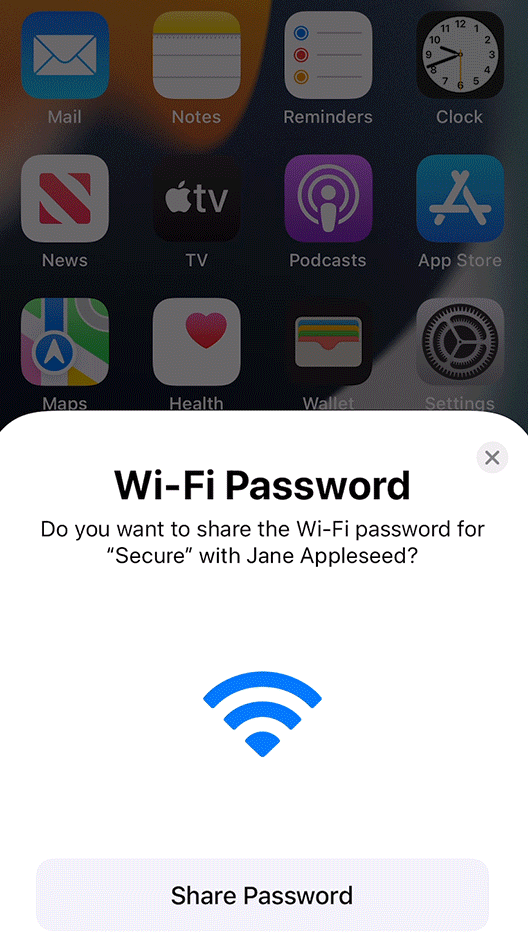
- When the person attempts to connect, a notification should appear on your device asking whether you want to share the Wi-Fi password.
- Tap Share Password, then select Done once the password has been shared.
The other device should then connect to the Wi-Fi network automatically.
How to View a Wi-Fi Password on an iPhone or iPad
If you only need to see your saved Wi-Fi password rather than share it with another device, you can quickly view it through your iPhone or iPad settings. Follow these steps:
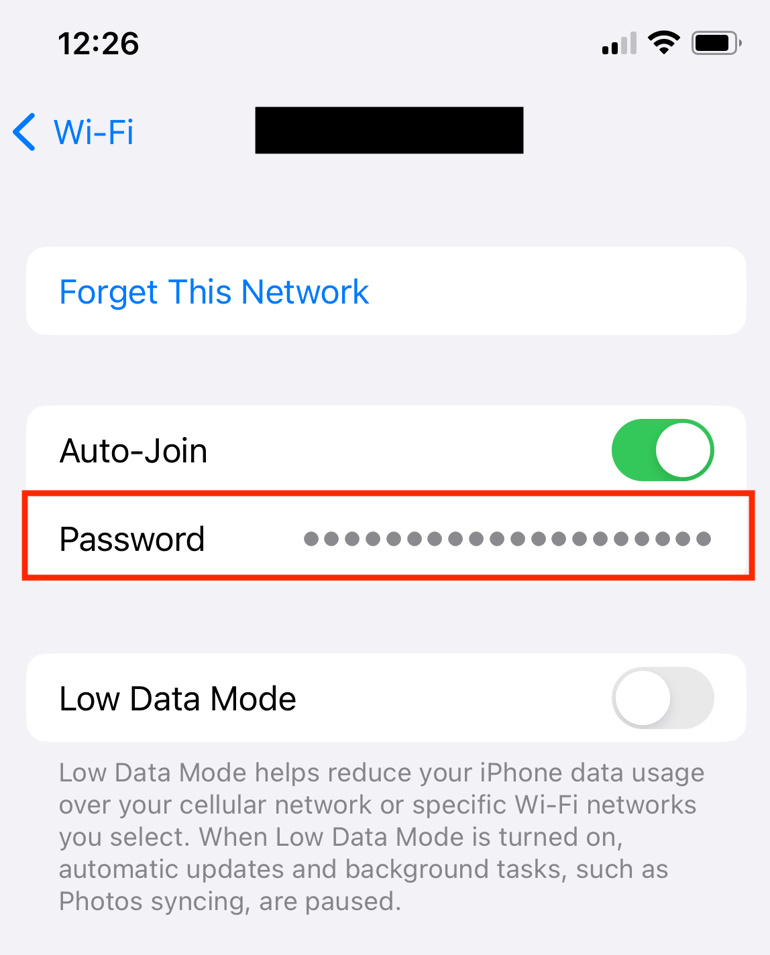
- Go to Settings > Wi-Fi.
- Find and tap the Wi-Fi network whose password you want to view.
- On the network details screen, locate the Password field.
- The password will initially appear hidden as a series of dots.
- Tap the Password field and verify your identity using Face ID or your device passcode.
Once verified, the saved Wi-Fi password will be displayed on the screen.
How to View Your Wi-Fi Password on a Mac
You can also find and view a saved Wi-Fi password on your Mac. The process is slightly different from using an iPhone or iPad, but it only takes a few steps:
- Open System Settings and select Wi-Fi.
- Connect to the Wi-Fi network whose password you want to view, if you are not already connected.
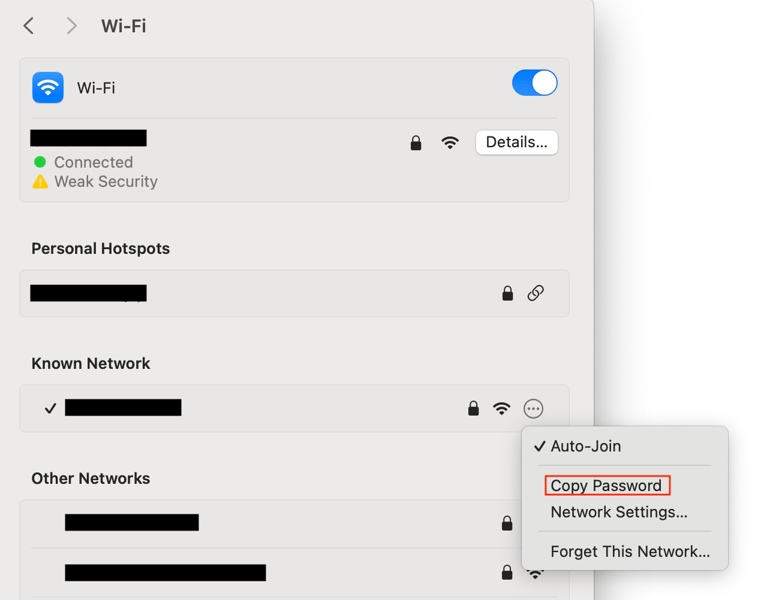
- Find the network and click the three-dot menu on the right side.
- Select Copy Password from the available options.
- Paste the copied password into a secure location, such as the Notes app, to view it.
You can then use the password yourself or share it with someone who needs access to the Wi-Fi network.
How to Share Your Wi-Fi Password on Android Devices
Many Android phones and tablets let you share Wi-Fi credentials through a QR code, making it easy for another device to connect without manually typing the password. The exact menu names may vary depending on your Android version and device manufacturer.
- Open Settings > Wi-Fi or Settings > Network & Internet > Wi-Fi. On some devices, the option may be listed under Connections.
- Find the Wi-Fi network you want to share and tap the gear, information, or settings icon next to it.
- Look for the Share option and tap it. You may need to verify your identity using your fingerprint, face recognition, or device PIN.
- A QR code should appear on the screen. Depending on your device, the Wi-Fi password may also be displayed.
- Ask the other person to scan the QR code using their phone’s camera. Their device should then connect to the Wi-Fi network automatically.
If their Android phone’s camera does not recognize QR codes, they may be able to use the built-in QR scanner found in their Wi-Fi settings. They can open Settings > Wi-Fi, look for an option such as Add Network or a QR-code icon, and use the scanner to scan the code displayed on your phone.
If neither method works, you can simply read the password from your device and have the other person enter it manually.
How to Share Your Wi-Fi Password on Windows Computers
Windows does not provide the same automatic Wi-Fi password-sharing process available on some mobile devices. Instead, you can view the saved Wi-Fi password and give it to the other person manually. The exact steps can vary between Windows versions, but the general process is as follows:
- Open the Windows Start menu and go to Settings > Network & Internet.
- Open the Wi-Fi or network settings and select the Wi-Fi network you are connected to.
- Look for the network’s Wireless Properties or related security settings.
- Open the Security tab and find the Network security key field. This contains your Wi-Fi password.
- The password will normally be hidden. Select Show characters to reveal it.
- Once visible, you can copy the password and send it to your friend or have them enter it manually on their device.
Because Windows settings can differ depending on the version you’re using, some menu names and locations may not exactly match these steps.
Frequently Asked Questions
Can I share my Wi-Fi password without typing it?
Yes. iPhone, iPad, and many Android devices offer built-in ways to share Wi-Fi credentials without manually entering the password. Android commonly uses a QR code, while Apple devices can share the password through a pop-up prompt.
How do I share a Wi-Fi password from an iPhone?
Make sure both Apple devices have Wi-Fi and Bluetooth enabled and are near each other. Have the other person select your Wi-Fi network, then tap Share Password when the prompt appears on your iPhone.
Can I see my saved Wi-Fi password on an iPhone?
Yes. On supported iOS versions, go to Settings > Wi-Fi, select the network, and tap the Password field. Authenticate with Face ID, Touch ID, or your passcode to reveal it.
How can I share Wi-Fi from Android?
Most modern Android devices allow you to share a Wi-Fi network using a QR code. Open the Wi-Fi settings, select the connected network, tap Share, and let the other person scan the displayed QR code.
Can I view a saved Wi-Fi password on a Mac?
Yes. Depending on your macOS version, you can access your Wi-Fi settings and use the network’s options to copy or reveal the saved password.
Can Windows automatically share a Wi-Fi password?
Windows does not offer the same simple device-to-device sharing feature found on many iPhone and Android devices. You can usually view the saved network security key and share the password manually.
Is it safe to share my Wi-Fi password?
Sharing your Wi-Fi password is generally safe with people you trust, but avoid giving it to unknown users. For additional security, consider using a guest network instead of sharing the password for your primary network.
What should I do if Wi-Fi password sharing does not work?
First, make sure both devices have Wi-Fi enabled and are close enough to communicate. Check that you’re using the correct network and that your devices are running supported software. If automatic sharing still fails, you can view the password and enter it manually.
Conclusion
Sharing a Wi-Fi password doesn’t have to be complicated. Whether you’re using an iPhone, iPad, Mac, Android device, or Windows computer, there are convenient ways to access and share your network credentials. Apple devices can share passwords directly, Android devices can often use QR codes, while Windows provides options for viewing saved network passwords.
For better security, only share your Wi-Fi credentials with people you trust. If you frequently need to provide internet access to guests, setting up a separate guest network can also help protect the devices and data connected to your primary network.
