

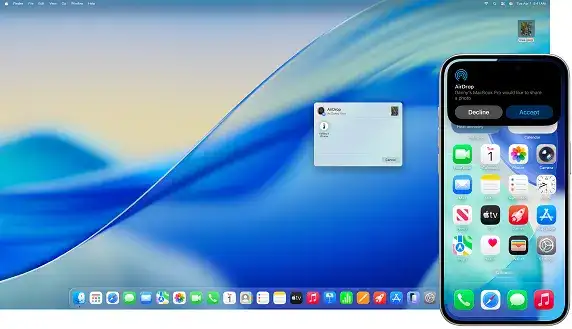
AirDrop is a convenient and secure Apple feature that lets you quickly share files, photos, videos, and other data between compatible devices. The process is fast and straightforward, and unlike some messaging or sharing methods, AirDrop preserves the original quality of your media.
Your AirDrop name is also important because it helps others identify your device when you send or receive a sharing request. Using a clear and recognizable name can make it easier for the recipient to identify you and accept the transfer. In this guide, we’ll explain how to change your AirDrop name on the latest versions of iOS, iPadOS, and macOS.
What You’ll Need
Whenever someone wants to send files to your device through AirDrop, they need to identify and select your device from a list of nearby Apple devices. This can become confusing when multiple people around you have similar or default device names, making it harder to tell which one is yours. Setting a unique and recognizable AirDrop name can help others identify your device quickly and avoid sending files to the wrong person.
Must-Read Apple Coverage
- Nearly 7 in 10 iPhone Owners Plan to Upgrade to iPhone 17
- Apple Prepares an AI-Powered Siri Upgrade With Google Search Integration
- Apple’s Xcode 26 Beta Adds Support for GPT-5 and Claude
- Apple’s Vision Pro Adoption Slows as New Content Arrives “Drip by Drip”
To change the name that appears when you use AirDrop, you’ll need to change the name of your Apple device itself. Before doing so, make sure your device supports AirDrop. The feature is available on iPhones and iPads running iOS 7 or later, while Macs and MacBooks released in 2012 or later can use AirDrop when running OS X Yosemite or newer.
For the best experience, it’s also a good idea to keep your device updated to the latest available operating system, such as iOS 17 or macOS Sonoma. Software versions can occasionally affect compatibility, so keeping both devices up to date can help ensure AirDrop works smoothly when sharing files with another person.
How to Change Your AirDrop Name on an iPhone or iPad
Updating the name that appears when you use AirDrop on an iPhone or iPad only takes a few moments. Follow these steps:
- Open the Settings app on your iPhone or iPad.
- Tap General.
- Select About.
- Tap Name.
- Delete the existing device name and enter the new name you want others to see when you use AirDrop (Figure A).
Your new device name will be used as your AirDrop identifier, making it easier for nearby users to recognize your device when sharing files.
Figure A

Select Done to save the new device name.
Your device name—and, as a result, the name shown when using AirDrop—will now be updated. You can close the Settings app once you’re finished.
How to Change Your AirDrop Name on a Mac
Changing the name associated with AirDrop on a Mac is just as straightforward as it is on an iPhone or iPad. Follow these steps:
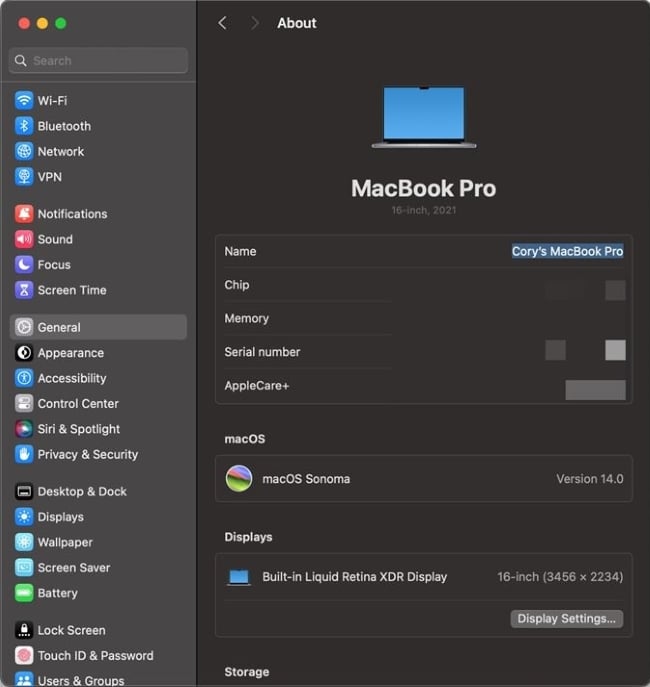
- Click the Apple logo in the top-left corner of your screen and select System Settings.
- Go to General > About.
- Click the Name field and enter the new name you want to use for your Mac.
- When prompted, verify your identity by entering your account password or using Touch ID (Figure B).
Once the new name is saved, it will be used to identify your Mac when sharing files through AirDrop.
Figure B
4. Tap the Back button when you’re finished to save the new name.
What to Do If Your Device Isn’t Showing the New AirDrop Name
Sometimes, the updated AirDrop name may not appear immediately, even after you’ve followed the correct steps. If this happens, go through the name-change process again and make sure each step has been completed correctly.
If the name still doesn’t change, check whether your device is running the latest available software version. Keeping your operating system updated can help resolve compatibility and AirDrop-related issues.
To check for updates:
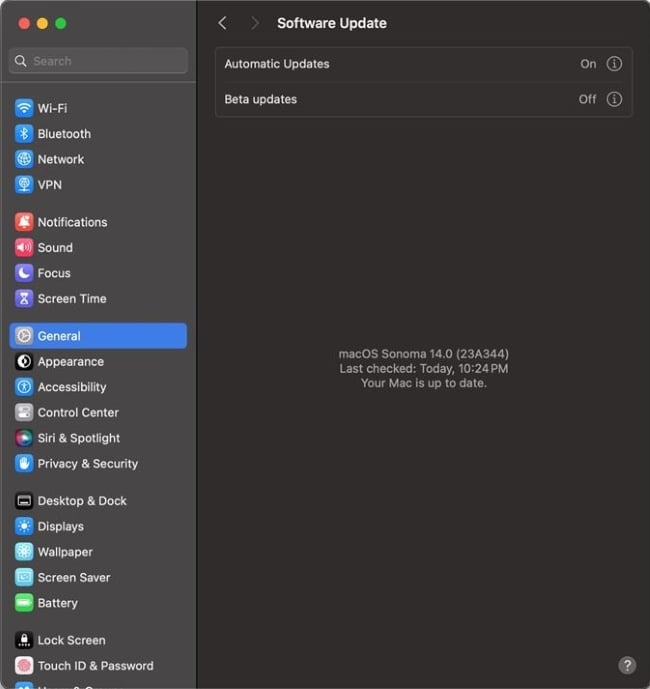
- Open the Settings app on your iPhone or iPad, or System Settings on your Mac.
- Select General > Software Update (Figure C).
- If an update is available, follow the on-screen instructions to install it.
Figure C
If your AirDrop name still hasn’t updated, try restarting your device after changing the name. Turn the device off, wait a few moments, and then turn it back on. Once it restarts, the new AirDrop name should appear when sharing files.
When other Apple users attempt to send files or media to your device, they’ll now see the new name you’ve chosen for AirDrop, making your device easier to identify.
Ready to Start Sharing?
AirDrop is a convenient way to share files, photos, videos, and other content between Apple devices. However, finding the right device can be difficult when several nearby users have similar or default AirDrop names. Giving your device a unique name makes it easier for others to recognize and select you when sending files.
Before you start sharing, make sure your device is discoverable through AirDrop, especially if you’re using iOS 16.2 or later. Once your visibility settings are configured, you can start sharing content with nearby Apple devices.
Frequently Asked Questions
How do I change my AirDrop name on an iPhone?
Go to Settings > General > About > Name, enter your preferred device name, and tap Done. The new device name will also appear as your AirDrop name.
Can I change my AirDrop name without changing my iPhone name?
No. AirDrop uses your device name as its identifier, so changing the AirDrop name requires changing the name of your iPhone or iPad.
How do I change my AirDrop name on a Mac?
On your Mac, open Apple menu > System Settings > General > About, then click the Name field and enter a new device name. You may need to verify your identity to save the change.
Why is my new AirDrop name not showing?
If your updated name doesn’t appear, make sure your device software is up to date and restart the device. You should then see the new name when using AirDrop.
Can other people see my AirDrop name?
Yes. When your device is discoverable through AirDrop, nearby Apple users may see your device name when they try to send you files. Using a recognizable name can make it easier for others to identify the correct device.
Conclusion
Changing your AirDrop name is a quick way to make your iPhone, iPad, or Mac easier to recognize when sharing files with nearby Apple users. Since AirDrop uses your device name, updating it through your device settings also changes the name others see when sending you content.
Whether you want to use your name, a professional identifier, or something more unique, the process only takes a few steps. Once the new name is saved, make sure AirDrop is enabled and your device is discoverable so others can find you easily when sharing files.

1 Comment
Pingback: Google Drive vs OneDrive vs Dropbox: Which Is Best?