

Google Drive vs OneDrive vs Dropbox is a comparison for anyone choosing cloud storage in 2026. All three services store, sync, and share files, but they fit different workflows. Google Drive excels at Google Workspace, OneDrive integrates with Windows and Microsoft 365, while Dropbox focuses on file syncing and sharing. The right choice depends on storage, tools, security, and value.
This guide compares storage, synchronization, collaboration, business use, and usability, then explains which service best fits different users and needs.
Google Drive vs OneDrive vs Dropbox at a Glance
| Feature | Google Drive | OneDrive | Dropbox |
|---|---|---|---|
| Best for | Google ecosystem | Windows & Microsoft 365 | File syncing & sharing |
| Free storage | 15 GB | 5 GB | 2 GB |
| Productivity tools | Google Docs, Sheets, Slides | Word, Excel, PowerPoint | Third-party integrations |
| Windows support | Yes | Excellent | Yes |
| macOS support | Yes | Yes | Yes |
| Android | Yes | Yes | Yes |
| iPhone/iPad | Yes | Yes | Yes |
| File sharing | Yes | Yes | Yes |
| Collaboration | Excellent | Excellent | Strong |
| Desktop sync | Yes | Yes | Yes |
| Mobile access | Yes | Yes | Yes |
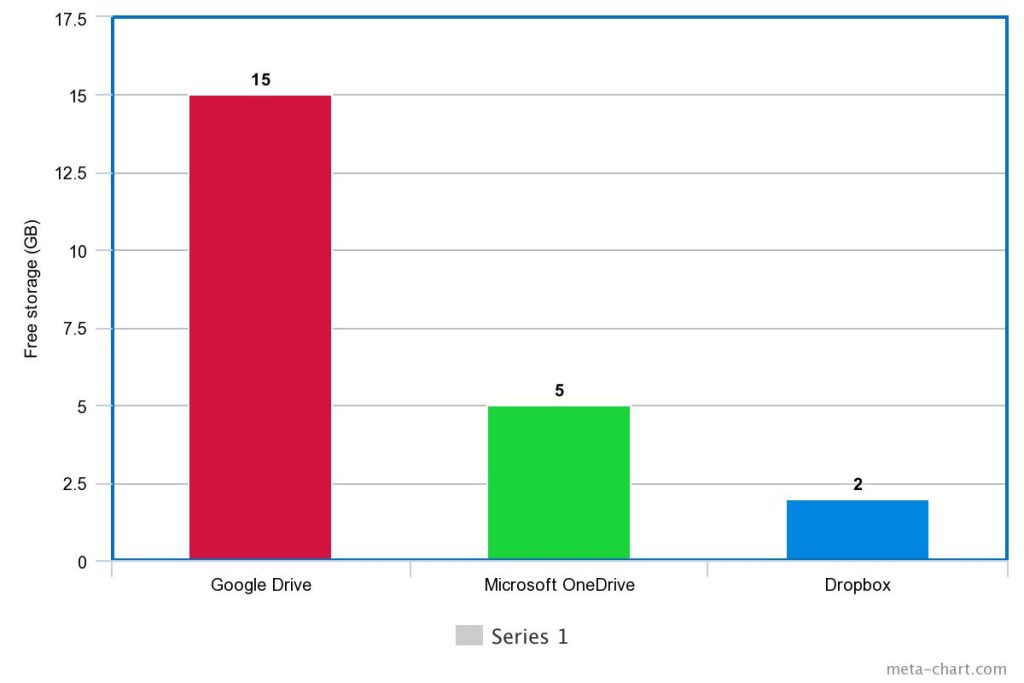
Google provides up to 15 GB of storage with each Google Account, shared across Google Drive, Gmail, and Google Photos. Microsoft provides 5 GB of free cloud storage for Microsoft accounts, while Dropbox Basic provides 2 GB.
These three services may look similar, but their ecosystems are different. Google Drive is closely connected to Google Workspace, OneDrive is built around Microsoft’s ecosystem, and Dropbox is strongly focused on file synchronization and sharing.
Read More: How to Change the AirDrop Name on iPhone, iPad, and Mac
What Is Google Drive?
Google Drive is Google’s cloud storage service for storing, organizing, synchronizing, and sharing files online.
It works with a wide range of file types, including:
- Documents
- PDFs
- Spreadsheets
- Presentations
- Images
- Videos
- ZIP files
- Other common file formats
One of Google Drive’s biggest advantages is its connection with other Google services.
Users can work with:
- Google Docs
- Google Sheets
- Google Slides
- Gmail
- Google Photos
- Google Workspace
This makes Drive especially convenient for students, freelancers, teachers, remote workers, and businesses already using Google services.
Google Drive Storage
A Google Account includes up to 15 GB of cloud storage at no charge. That storage is shared across Google Drive, Gmail, and Google Photos.
This is important because the 15 GB is not dedicated entirely to Drive.
For example, if your Google Photos backups and Gmail attachments use 10 GB, you have less than 5 GB remaining for Drive.
Users who need additional space can upgrade through Google One. Google currently offers storage upgrades beginning at 100 GB in supported markets.
Google Drive Advantages
- 15 GB free storage
- Excellent Google Workspace integration
- Real-time document collaboration
- Easy file sharing
- Browser-based access
- Mobile applications
- Desktop synchronization
- Integration with Gmail and Google Photos
- Useful for students and businesses
Google Drive Disadvantages
- Storage is shared with Gmail and Google Photos
- Heavy photo backups can consume the available space
- Some advanced features require paid Google Workspace or Google One plans
- Users outside the Google ecosystem may not benefit from all integrations
What Is Microsoft OneDrive?
OneDrive is Microsoft’s cloud storage platform.
It is closely connected with Windows and Microsoft 365, making it a natural choice for users who regularly work with Microsoft products.
OneDrive integrates with:
- Microsoft Word
- Microsoft Excel
- Microsoft PowerPoint
- Outlook
- Microsoft Teams
- Windows
- Microsoft 365
This ecosystem integration is one of OneDrive’s biggest advantages.
OneDrive Storage
Microsoft provides 5 GB of free cloud storage for users without a Microsoft 365 subscription.
Microsoft 365 Personal includes 1 TB of OneDrive cloud storage, while Microsoft 365 Family provides 1 TB for each person sharing the subscription, for up to six people.
This can make OneDrive particularly valuable if you already need Microsoft 365 applications.
Instead of paying separately for office software and cloud storage, a Microsoft 365 subscription can combine both.
OneDrive Advantages
- Excellent Windows integration
- Strong Microsoft 365 integration
- Works with Word, Excel, and PowerPoint
- File synchronization
- Mobile access
- Personal Vault
- File version history
- File recovery features
- Camera-roll backup
- Cross-platform support
Microsoft supports OneDrive across Windows, macOS, iOS, Android, and web browsers.
OneDrive Disadvantages
- Only 5 GB of free cloud storage
- Best value often comes with Microsoft 365
- Users who do not use Microsoft products may not need its ecosystem features
- Storage is connected to Microsoft’s broader account storage system
What Is Dropbox?
Dropbox is a cloud storage and file synchronization platform designed around storing, organizing, syncing, and sharing files.
Unlike Google Drive and OneDrive, Dropbox does not depend as heavily on a large office-productivity ecosystem.
That makes it useful for people who work with different applications and platforms.
Dropbox is commonly used for:
- Client file sharing
- Project folders
- Team collaboration
- Document synchronization
- Image sharing
- Video files
- Backup
- Cross-device access
Dropbox Basic Storage
Dropbox Basic provides 2 GB of free storage and includes essential features such as file sharing, synchronization, online-only files, and Dropbox Backup.
Dropbox also provides paid plans with more storage. Its current help documentation lists Dropbox Plus with 2 TB of storage.
Dropbox Advantages
- Simple file synchronization
- Easy folder-based organization
- File sharing
- Cross-platform support
- Online-only files
- Backup features
- Third-party integrations
- Straightforward client-sharing workflow
Dropbox Disadvantages
- Only 2 GB of free storage
- Less free space than Google Drive and OneDrive
- Less integrated with a complete office productivity ecosystem
- May be unnecessary if you already receive cloud storage through another subscription
Google Drive vs OneDrive vs Dropbox: Storage Comparison
Storage is one of the first things users consider when comparing cloud services.
| Service | Free Storage | Main Paid Ecosystem |
|---|---|---|
| Google Drive | 15 GB | Google One |
| OneDrive | 5 GB | Microsoft 365 / OneDrive |
| Dropbox | 2 GB | Dropbox plans |
Google clearly offers the largest free storage allowance among the three. However, Google’s 15 GB is shared across Drive, Gmail, and Google Photos.
OneDrive provides 5 GB of free cloud storage, while Dropbox Basic provides 2 GB.
Storage Winner: Google Drive
If your primary requirement is getting the most free storage without paying, Google Drive wins.
However, storage alone should not determine your decision.
Google Drive vs OneDrive: Which Is Better?
Google Drive and OneDrive are both excellent cloud-storage platforms, but they are designed around different ecosystems.
Choose Google Drive If:
- You use Gmail regularly
- You use Google Docs
- You work with Google Sheets
- You collaborate through Google Workspace
- You want more free storage
- You prefer browser-based collaboration
- You use Android or Google services heavily
Choose OneDrive If:
- You use Windows
- You already subscribe to Microsoft 365
- You work with Word and Excel
- You frequently use PowerPoint
- You want Windows integration
- You want cloud storage combined with Microsoft productivity applications
For example, a student who writes assignments in Google Docs may prefer Google Drive.
A business employee who spends most of the day working in Word and Excel may prefer OneDrive.
Winner for Google Users: Google Drive
Winner for Microsoft Users: OneDrive
Google Drive vs Dropbox: Which Is Better?
Google Drive has an advantage when document creation and collaboration are important.
Dropbox is particularly attractive when synchronization and file sharing are the main requirements.
Choose Google Drive If:
- You use Google Docs
- You need collaborative spreadsheets
- You want 15 GB of free storage
- You use Gmail
- You work with Google Workspace
- You need real-time document collaboration
Choose Dropbox If:
- You mainly need file synchronization
- You frequently share files with clients
- You work across different platforms
- You prefer a simple folder-based system
- You use many third-party applications
Dropbox keeps synchronized files updated across computers, phones, tablets, and web browsers.
Winner for Google Workspace: Google Drive
Winner for Simple File Syncing: Dropbox
OneDrive vs Dropbox: Which Is Better?
OneDrive has a strong advantage for Windows users and Microsoft 365 subscribers.
Dropbox is more platform-neutral and focuses strongly on file synchronization and sharing.
Choose OneDrive If:
- You use Windows
- You have Microsoft 365
- You work with Word and Excel
- You want Windows File Explorer integration
- You want Microsoft’s built-in cloud ecosystem
- You need 1 TB of storage through Microsoft 365 Personal
Choose Dropbox If:
- You work across different platforms
- You share files with clients
- You want simple synchronization
- You primarily need cloud file storage
- You do not need an integrated office suite
Winner for Microsoft 365: OneDrive
Winner for Straightforward File Sharing: Dropbox
Collaboration Comparison
Cloud storage is no longer just about keeping files online.
For many users, collaboration is equally important.
Google Drive Collaboration
Google Drive is closely connected to Google Docs, Sheets, and Slides.
This allows multiple people to collaborate on compatible documents without repeatedly sending different file versions through email.
For example:
Student A → creates Google Doc → Student B edits → Student C adds comments → teacher receives shared link
This workflow is simple and efficient.
OneDrive Collaboration
OneDrive works closely with Microsoft Word, Excel, and PowerPoint.
This makes it particularly useful for businesses and teams already using Microsoft 365.
Employees can work on documents while keeping their files within Microsoft’s broader ecosystem.
Dropbox Collaboration
Dropbox also supports file and folder sharing and collaboration.
Its main advantage is that it does not require users to commit to Google or Microsoft productivity tools.
Best for Google Collaboration: Google Drive
Best for Microsoft Collaboration: OneDrive
Best for File-Based Collaboration: Dropbox
Security Comparison
Security is another important factor when choosing cloud storage.
You should consider:
- Account security
- Encryption
- Two-factor authentication
- File recovery
- Version history
- Sharing permissions
- Suspicious activity protection
- Backup and restoration
OneDrive includes features such as Personal Vault, file version history, file restoration, and ransomware-related recovery capabilities depending on the plan.
Google Drive and Dropbox also provide security and account-protection features.
For businesses, however, the security comparison should go beyond consumer features. Organizations should examine the specific security, administrative, compliance, and sharing controls offered by the business plan they are considering.
Security Winner
There is no universal winner for every user.
OneDrive is particularly attractive for Microsoft users who want integrated security and recovery features.
Google Drive works well for users already inside Google’s security ecosystem.
Dropbox provides security and sharing controls suited to file-based workflows.
The best approach is to enable strong account authentication regardless of which service you choose.
File Synchronization: Which Is Best?
File synchronization allows changes made on one device to become available on other connected devices.
For example, you can edit a document on your laptop and then access the updated version from your phone.
Google Drive
Google Drive works well for people who use multiple devices and Google services.
OneDrive
OneDrive is particularly convenient on Windows because it integrates closely with the operating system and File Explorer.
Microsoft also provides OneDrive for Windows, macOS, iOS, Android, and web browsers.
Dropbox
Synchronization is one of Dropbox’s central features.
Dropbox states that synced files remain updated across devices when changes are made.
Best for Windows Syncing: OneDrive
Best for Straightforward Syncing: Dropbox
Best for Google Users: Google Drive
Which Is Best for Students?
Students often need cloud storage for:
- Assignments
- PDFs
- Research documents
- Presentations
- Spreadsheets
- Images
- Group projects
- Notes
Google Drive is an excellent choice because students can combine Drive with Docs, Sheets, and Slides.
For example, a student can create an assignment in Google Docs, share it with classmates, collaborate in real time, and access the document from another device.
Best for Students: Google Drive
However, students whose schools provide Microsoft 365 may find OneDrive more convenient.
If the institution already uses Word, Excel, Teams, and SharePoint, OneDrive can fit naturally into the academic workflow.
Which Is Best for Business?
The best cloud storage for business usually depends on the productivity suite the organization already uses.
Google Workspace Businesses
Google Drive is a natural choice for companies using:
- Gmail
- Google Docs
- Google Sheets
- Google Slides
- Google Meet
- Google Calendar
Microsoft 365 Businesses
OneDrive is a natural choice for businesses using:
- Outlook
- Word
- Excel
- PowerPoint
- Microsoft Teams
- SharePoint
Dropbox for Businesses
Dropbox can be useful for companies that primarily need:
- File synchronization
- Client sharing
- Project folders
- File organization
- Cross-platform collaboration
Best for Google Workspace: Google Drive
Best for Microsoft 365: OneDrive
Best for Independent File Sharing: Dropbox
Which Is Best for Photos and Videos?
All three services can store photos and videos, but their ecosystems differ.
Google Drive
Google Drive works alongside Google Photos, but Google storage is shared between Drive, Gmail, and Photos.
This can be convenient for Android users, although photo backups can consume available storage.
OneDrive
OneDrive supports storing and accessing photos and videos across devices.
Microsoft’s cloud storage can be particularly useful for Windows users who want files and media available on both their PC and mobile devices.
Dropbox
Dropbox supports photo and file synchronization across supported devices and can be useful for photographers, freelancers, agencies, and clients who frequently exchange media files.
Best for Google Photos Users: Google Drive
Best for Windows Users: OneDrive
Best for Cross-Platform File Sharing: Dropbox
Which Cloud Storage Is Easiest to Use?
Ease of use depends partly on the ecosystem you already understand.
| Your Main Workflow | Best Choice |
|---|---|
| Gmail + Google Docs | Google Drive |
| Windows + Microsoft Office | OneDrive |
| Client file sharing | Dropbox |
| Google Photos | Google Drive |
| Microsoft 365 | OneDrive |
| Simple folder synchronization | Dropbox |
If you already use Google Docs every day, Google Drive will probably feel more natural.
If you work in Word and Excel, OneDrive is likely to feel more integrated.
If you simply want a folder that stays synchronized across devices, Dropbox can be appealing.
Which Has the Best Free Plan?
The three free plans are quite different.
Google Drive
Google provides up to 15 GB of storage with a Google Account.
OneDrive
Microsoft provides 5 GB of cloud storage for users without a Microsoft 365 subscription.
Dropbox
Dropbox Basic provides 2 GB of free storage.
Free Storage Winner: Google Drive
If your main goal is maximum free storage, Google Drive is the obvious choice.
However, if you already pay for Microsoft 365, OneDrive may offer better overall value because Microsoft 365 Personal includes 1 TB of OneDrive storage, while Family provides 1 TB per person for up to six people.
Google Drive vs OneDrive vs Dropbox for Windows
Windows users have a particularly strong reason to consider OneDrive.
OneDrive is deeply integrated with Windows and can be used to keep files available across devices.
Microsoft specifically supports OneDrive for moving files from an old Windows PC to a new one, allowing files, photos, and videos stored in OneDrive to be accessed on the new computer.
Google Drive also works on Windows, while Dropbox provides its own desktop synchronization application.
Winner for Windows: OneDrive
Google Drive vs OneDrive vs Dropbox for Mac
Mac users can use all three services.
Your choice therefore depends less on operating-system integration and more on your workflow.
Choose Google Drive
If you primarily use Google Workspace.
Choose OneDrive
If you regularly work with Microsoft 365 applications.
Choose Dropbox
If you want a platform-neutral file synchronization workflow.
Which Is Better for File Sharing?
All three services allow users to share files, but the experience differs.
Google Drive Sharing
Google Drive provides sharing permissions for documents and files, making it useful for collaborative projects.
OneDrive Sharing
OneDrive works well for Microsoft users who need to share Office documents and files.
Dropbox Sharing
Dropbox is particularly well suited to people who frequently send files and folders to clients.
For example, a freelance designer could create a Dropbox project folder and share it with a client without requiring the client to use Google Workspace or Microsoft 365.
Best for Client File Sharing: Dropbox
Best for Collaborative Documents: Google Drive
Best for Microsoft Office Files: OneDrive
How to Choose the Right Cloud Storage
Before subscribing to a cloud storage service, consider these factors.
1. Check Your Existing Ecosystem
If you use Google products every day, start with Google Drive.
If you use Microsoft 365, start with OneDrive.
If you need a simple independent file-sharing platform, consider Dropbox.
2. Compare Free Storage
Google Drive provides 15 GB.
OneDrive provides 5 GB.
Dropbox provides 2 GB.
3. Consider Collaboration
Think about whether you need real-time editing or simply file sharing.
For Google Docs collaboration, Google Drive is the natural choice.
For Word and Excel collaboration, OneDrive is a strong option.
4. Check Device Support
Make sure your preferred service works on:
- Windows
- macOS
- Android
- iPhone
- Tablet
- Web browser
All three provide broad cross-platform access.
5. Consider Long-Term Cost
Do not compare subscriptions only by storage.
Consider what else is included.
For example, Microsoft 365 can combine OneDrive storage with Microsoft Office applications.
Google One combines additional Google storage with Google’s wider ecosystem.
Dropbox focuses more directly on storage, synchronization, sharing, and related productivity features.
Google Drive vs OneDrive vs Dropbox: Pros and Cons
| Service | Pros | Cons |
|---|---|---|
| Google Drive | 15 GB free, excellent collaboration, Google integration | Storage shared with Gmail and Photos |
| OneDrive | Windows integration, Microsoft 365, Office integration | 5 GB free storage |
| Dropbox | Excellent syncing, sharing, cross-platform workflow | Only 2 GB free storage |
Can You Use Google Drive, OneDrive, and Dropbox Together?
Yes, you can use all three services.
For example, someone might use:
Google Drive: Personal documents and Google Workspace files
OneDrive: Microsoft Office documents
Dropbox: Client project folders
However, using several cloud services can make file organization more complicated.
You may also accidentally create multiple copies of the same files.
For most people, choosing one primary cloud-storage platform is simpler.
A second service can still be useful for specific projects or backups.
Google Drive vs OneDrive vs Dropbox: Which Is Best for You?
The easiest way to decide is to match the service to your workflow.
Choose Google Drive If:
You use Gmail, Google Docs, Google Sheets, Google Photos, Android, or Google Workspace and want generous free storage.
Choose OneDrive If:
You use Windows and Microsoft 365 and want cloud storage closely integrated with Word, Excel, PowerPoint, and the Microsoft ecosystem.
Choose Dropbox If:
You primarily need straightforward file synchronization, folder sharing, and client collaboration across different platforms.
Final Verdict
There is no single cloud storage service that is best for everyone.
Google Drive is the best overall choice for many personal users, students, and Google Workspace users. Its 15 GB free storage and strong collaboration tools make it especially attractive.
OneDrive is the best choice for Windows and Microsoft 365 users. Its integration with Windows and Microsoft applications makes it particularly convenient, and Microsoft 365 subscriptions can include 1 TB of OneDrive storage.
Dropbox is the best choice for users who prioritize file synchronization and sharing. Its simple folder-based workflow can work particularly well for freelancers, teams, and people who frequently share project files. Dropbox Basic starts with 2 GB of free storage.
The best choice ultimately depends on your existing workflow. Instead of choosing based only on storage size, consider the applications you use, the devices you own, the people you collaborate with, your security requirements, and the long-term value of the plan.
Frequently Asked Questions
Is Google Drive better than OneDrive?
Google Drive is better for users who rely on Google Workspace, Gmail, Docs, Sheets, and Photos. OneDrive is generally better for people who use Windows and Microsoft 365.
Is OneDrive better than Dropbox?
OneDrive is a strong choice for Microsoft users because of its Windows and Microsoft 365 integration. Dropbox can be better when simple file synchronization and sharing are the main priorities.
Which has more free storage: Google Drive, OneDrive, or Dropbox?
Google Drive provides up to 15 GB, OneDrive provides 5 GB, and Dropbox Basic provides 2 GB of free storage. Google’s storage is shared across Drive, Gmail, and Google Photos.
Is Dropbox still worth using in 2026?
Yes. Dropbox remains useful for users who prioritize file synchronization, sharing, online-only files, and cross-platform workflows. Its free Basic plan provides 2 GB of storage.
Which is best for students?
Google Drive is an excellent choice for students who use Google Docs, Sheets, and Slides. OneDrive can be better when a school or university provides Microsoft 365.
Which is best for business?
Google Drive is a strong choice for organizations using Google Workspace, while OneDrive fits naturally into Microsoft 365 environments. Dropbox can be useful for businesses focused heavily on file synchronization and external file sharing.
Can I use these services on both phone and computer?
Yes. Google Drive, OneDrive, and Dropbox provide access across computers, mobile devices, and web browsers. OneDrive officially supports Windows, macOS, iOS, Android, and web browsers.
Which is best for free cloud storage?
Google Drive is the winner if free storage is your main concern because its standard Google Account allowance is up to 15 GB, compared with 5 GB for OneDrive and 2 GB for Dropbox Basic.
Conclusion
Google Drive, OneDrive, and Dropbox are all capable cloud-storage services, but each one serves a different type of user. Google Drive is ideal for Google Workspace collaboration and generous free storage, OneDrive is especially valuable for Windows and Microsoft 365 users, and Dropbox is a strong choice for simple file synchronization and sharing.

3 Comments
Pingback: Best Free Video Editing Software for Beginners in 2026
Pingback: Best Remote Work Software for Teams: Top Tools Compared
Pingback: Best Cloud Backup Software 2026 for Windows and Mac