


Have you lost your Windows 10 product key? You can find it listed in the operating system with a little know-how and a few simple commands.
Editor’s Note: Microsoft no longer sells Windows 10, and official support ended on October 14, 2025. However, some third-party retailers may still offer Windows 10 licenses.
Finding your Windows 10 product key can sometimes feel like searching for a hidden treasure. It may be printed on a sticker attached to your computer hardware or included with the packaging of a physical Windows copy—if you still have the original box.
But before you start digging through storage boxes or crawling behind your desk to locate a 25-character alphanumeric code printed in tiny text on your PC, there are easier ways to find your Windows 10 product key.
In this guide, we’ll show you several ways to retrieve your Windows 10 product key using built-in Windows tools and settings. If you’re using Microsoft’s newer operating system, we also have a guide explaining how to find your product key in Windows 11.
How to Find Your Windows 10 Product Key
The method that works for you will depend largely on how Windows 10 was activated on your computer. If you upgraded from a genuine Windows 7 or Windows 8 installation, or Windows came preinstalled when you purchased your PC, you may be able to retrieve the product key using one of the methods below. However, computers activated through an organization’s volume licensing agreement may not have an easily accessible product key.
1. Use Command Prompt
One of the quickest ways to check for your Windows 10 product key is through Command Prompt. This method uses a built-in Windows command to retrieve the key stored in your computer’s firmware.
Follow these steps:
- Type cmd into the Windows 10 search box.
- Right-click Command Prompt in the search results.
- Select Run as administrator.
- Enter the following command and press Enter:
wmic path softwareLicensingService get OA3xOriginalProductKey
If your PC has an embedded Windows product key, Command Prompt should display the 25-character key on the screen. If nothing appears, your system may be using a digital license instead of a firmware-embedded product key.

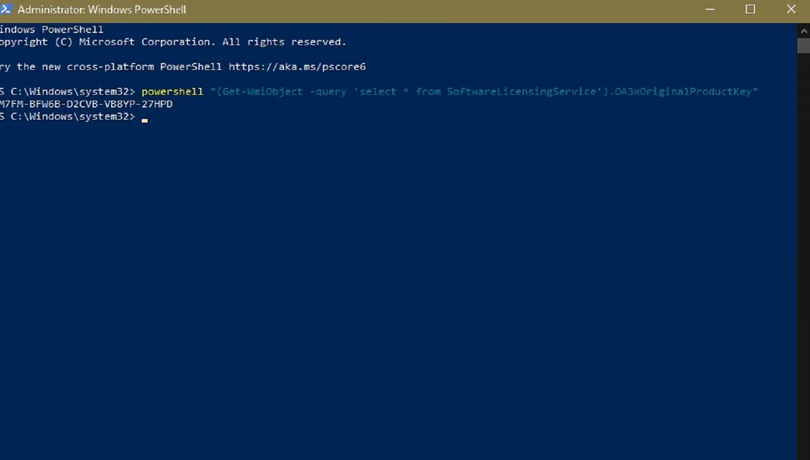
2. Use PowerShell
PowerShell provides another simple way to check whether your Windows 10 product key is stored on your computer. The process is similar to using Command Prompt:
- Right-click the Start button.
- Select Windows PowerShell (Admin) from the context menu.
- Enter the following command and press Enter:
powershell "(Get-WmiObject -query 'select * from SoftwareLicensingService').OA3xOriginalProductKey"
If your product key is embedded in your PC’s firmware, PowerShell will display the 25-character Windows 10 product key. If no key appears, your system may be activated using a digital license instead.
3. Check the Windows Registry
Another way to look for your Windows 10 product key is through the Windows Registry. If the key is stored there, you can locate it by navigating to the appropriate registry entry.
Follow these steps:
- Type regedit into the Windows 10 search box and select Registry Editor from the results.
- Navigate to the following location:
Computer\HKEY_LOCAL_MACHINE\SOFTWARE\Microsoft\Windows NT\CurrentVersion\SoftwareProtectionPlatform
- Look for the BackupProductKeyDefault entry.
If a product key is stored in this registry location, the BackupProductKeyDefault value may display the Windows 10 product key.
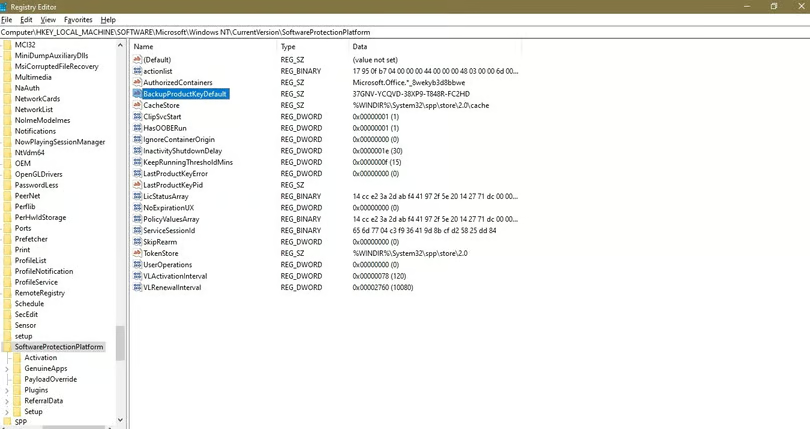
Note: In my testing, the Windows 10 product key returned by both Command Prompt and PowerShell was identical. However, the key shown in the Registry was different. One possible explanation is that the example PC was upgraded from Windows 10 Home to Pro, meaning the registry may be showing a key associated with the upgrade rather than the original installation. If you have a more accurate explanation for why these keys differ, feel free to share it with us.
Other Ways to Find Your Windows 10 Product Key
You can also use third-party software to retrieve and display your Windows 10 product key. These tools generally perform the same type of lookup described above, but using third-party applications introduces additional software and potential security or privacy risks. If you choose this approach, download tools only from reputable sources.
If you purchased Windows 10 through the Microsoft Store, you may also be able to find your purchase and license information through your Microsoft account’s order history.
Frequently Asked Questions
Where can I find my Windows 10 product key?
You can check your product key using Command Prompt, PowerShell, or the Windows Registry. If Windows was activated with a digital license, a traditional product key may not be available.
Can I find my Windows 10 product key using Command Prompt?
Yes. Open Command Prompt as an administrator and run the appropriate wmic command to check whether a product key is embedded in your computer’s firmware.
Why does my Windows 10 product key differ between methods?
Different keys may appear if Windows was upgraded, such as from Home to Pro. One method may show the original OEM key, while another may display a key associated with the current edition.
Can I use third-party software to find my Windows 10 product key?
Yes, some third-party utilities can retrieve product-key information. However, they may introduce security and privacy risks, so it’s safer to use Windows’ built-in tools whenever possible.
Conclusion
Finding your Windows 10 product key doesn’t have to involve searching through old packaging or hunting for a sticker on your PC. Built-in tools such as Command Prompt, PowerShell, and Registry Editor can help you check for product-key information in just a few steps.
Keep in mind that the key you find may vary depending on how Windows was activated or upgraded. If your system uses a digital license, you may not see a traditional product key at all. For the safest approach, start with Windows’ built-in methods before turning to third-party software.
